 lkhir
Using your Gemini API key
A Gemini API key lets a tool send requests to Google under your project. You control the key and its budget. If a tool gives you a finished image prompt, you can also use it in your own image generator.
Connect your key to lkhir
Sign in to Google AI Studio, open API keys and choose Create API key. Select a project you own, or create one for lkhir. If an existing project is missing, import it under Projects. Copy the key. In a lkhir tool, open “AI key for all tools”, paste it, choose “Check entered key”, then “Save for all tools” to reuse it across sessions.
Start with the free tier
The Free plan includes US$0 in monthly API credits. Its free quota is measured in requests and tokens. An eligible free project can send requests to supported text models without enabling paid usage. Google may ask you to verify the project. In AI Studio, open Rate limits and select your project to see its allowances for requests and tokens. Keys in the same project share those limits. Some features, including Gemini 3.1 Flash Image generation, require a paid project.
If you already pay for Google AI Pro
You can create an API key without a Pro subscription. Gemini app and AI Studio subscription allowances are separate from API usage in lkhir. Eligible Pro subscribers can claim US$10 in monthly developer credits in AI Studio and apply them to a paid billing account. If Google assigns you to Prepay, first purchase credits and keep a positive prepaid balance.
Estimate the cost of a generation
Google’s standard paid rates on 27 November 2026 were US$0.30 per million text input tokens and US$2.50 per million output tokens, including thinking, for Gemini 3.5 Flash-Lite. A request with 1,000 input and 500 total output tokens costs about US$0.00155. For Gemini 3.1 Flash Image, a 1K image costs about US$0.067 for image output, plus input and any text or thinking charges. Check the model your tool uses before generating a batch.
Set a budget before enabling paid generation
In AI Studio Projects, select Set up billing and link your Cloud Billing account. If prompted to prepay, choose Buy credits. Google lists a US$5 minimum purchase; check the amount shown for your region. Under Billing, leave auto-reload off for manual top-ups, or set a monthly auto-charge limit. Under Spend, select your project, open Monthly spend cap, then Edit spend cap. Enter your monthly limit and save if the option is available. Allow some headroom for reporting delays of around ten minutes and work already running. An alerts-only budget sends notifications while usage continues.
Google’s visual walkthroughs
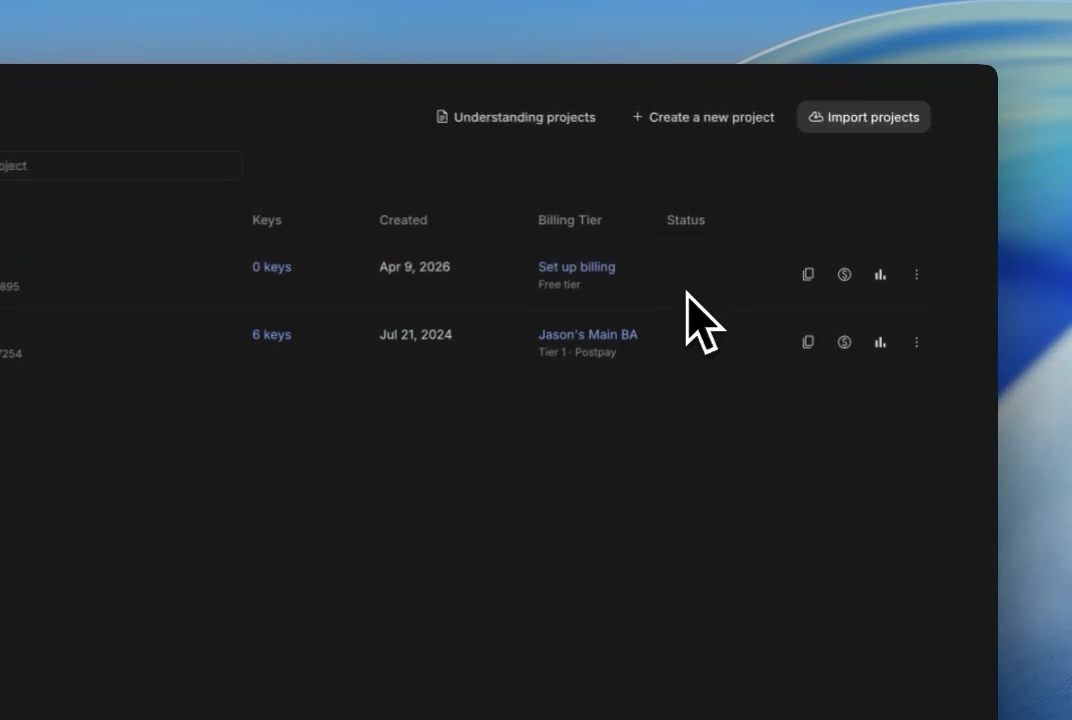
Select Set up billing beside your project. © Google 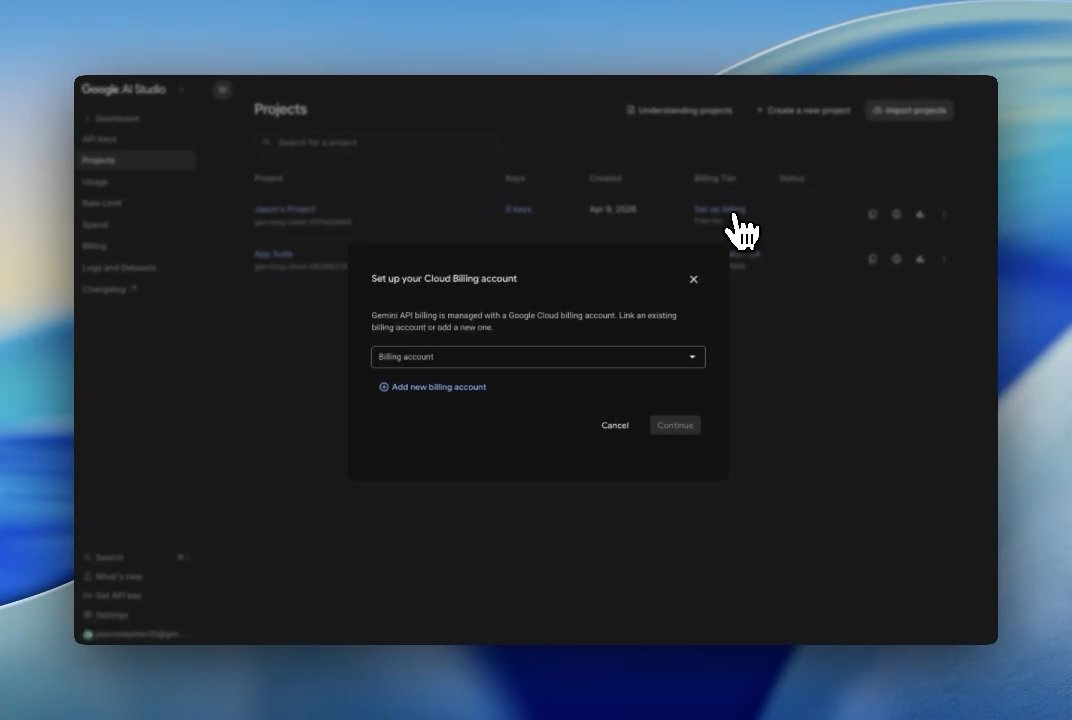
Choose a Cloud Billing account to link to this project. © Google 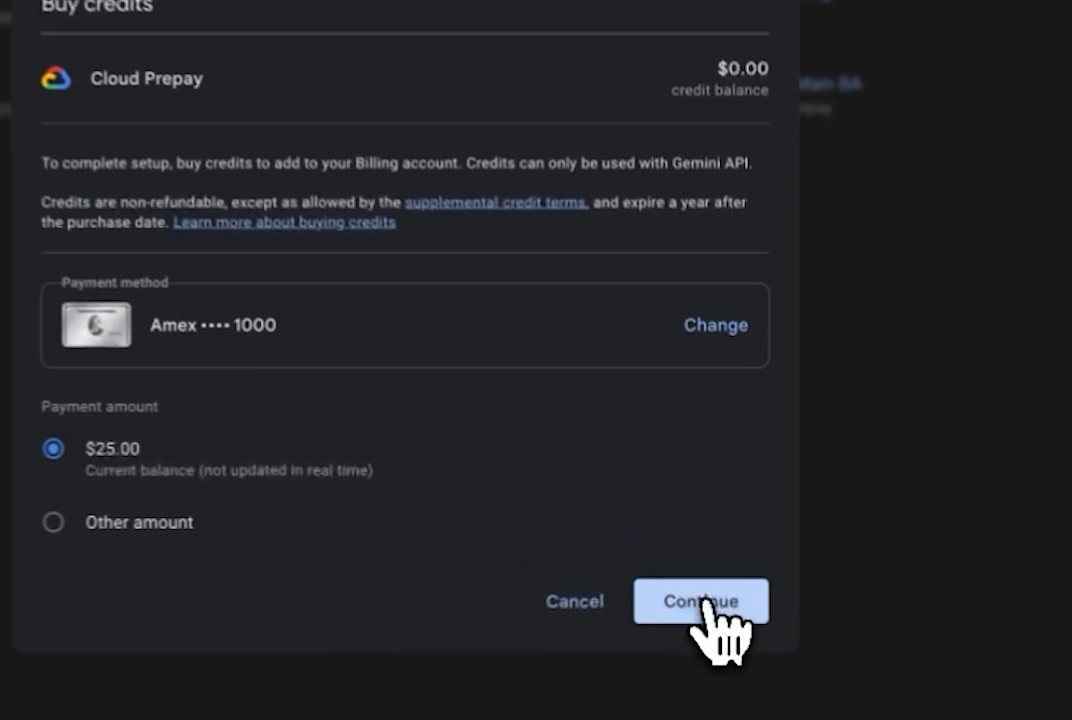
Choose Buy credits and enter your own amount. Google’s demo shows $25. © Google 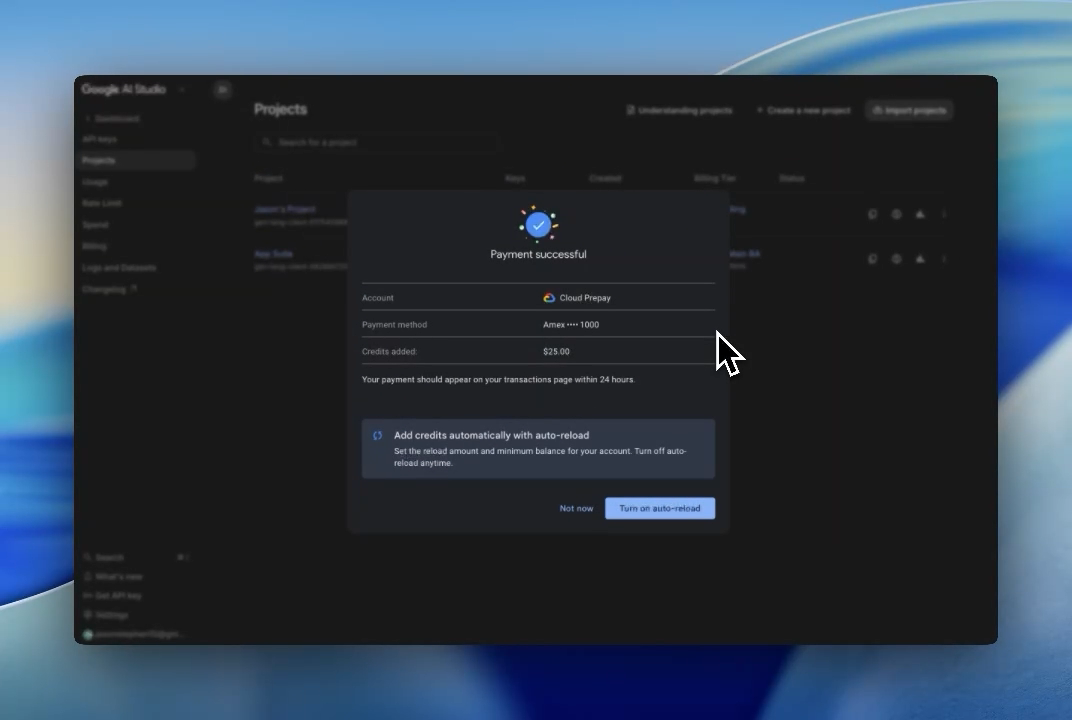
Choose Not now to keep top-ups manual. © Google 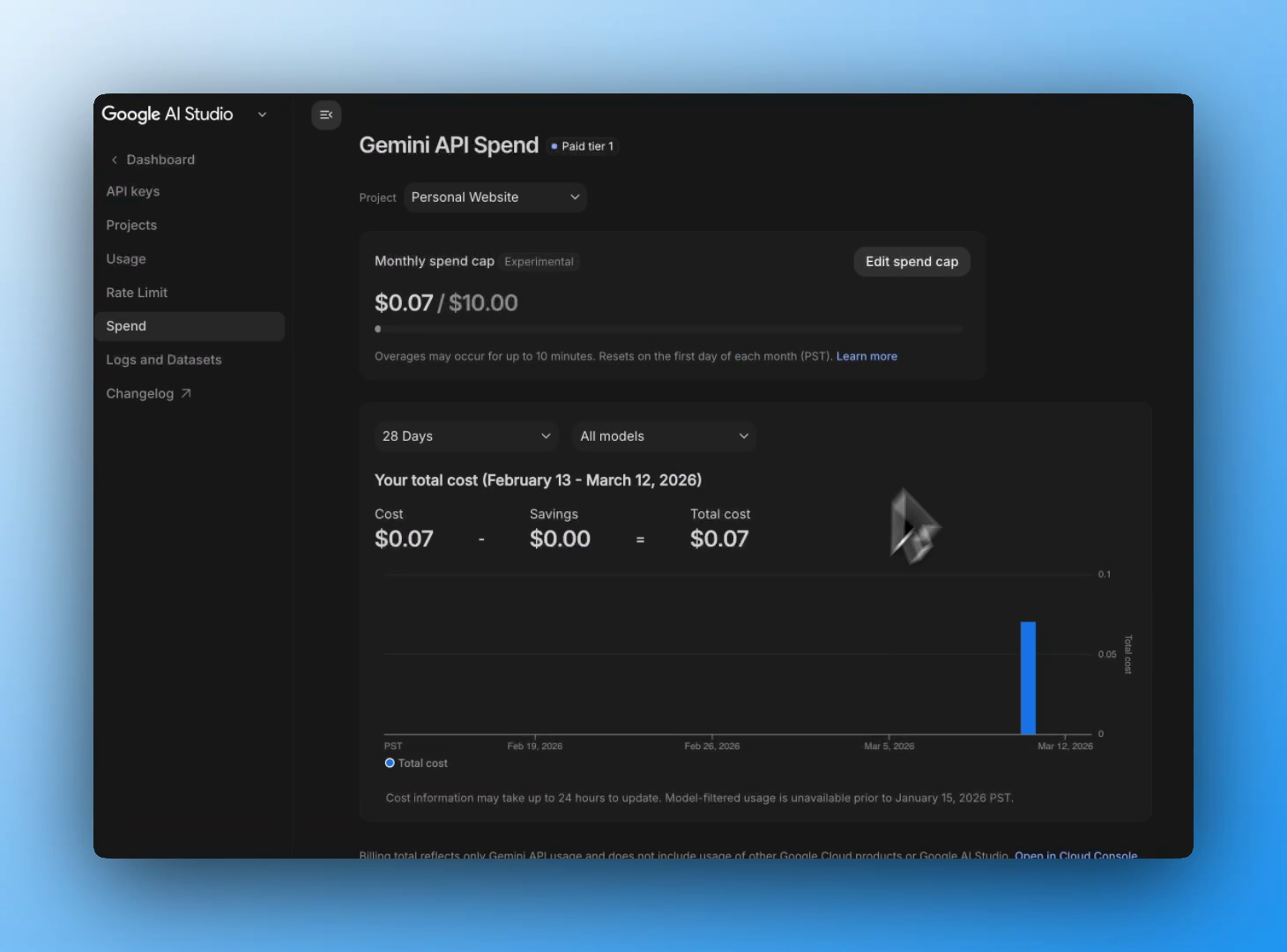
Under Spend, select Edit spend cap to set your monthly project limit. The $10 cap is an example. © Google
Keep the key private
Use a dedicated lkhir key and keep its API restriction set to the Generative Language API. Paste the key only in the key field. Keep it out of prompts, screenshots and support messages. If it is exposed, revoke it in AI Studio, replace it in lkhir and review project usage. Removing a saved key from lkhir only removes the local account connection.
Turn an image prompt into an image
We recommend generating images in Ideogram. In lkhir, choose the prompt-only workflow when available. When a tool returns a written image prompt, copy it into Ideogram, ChatGPT, Google Gemini or Midjourney. Pick the aspect ratio and generate a first version there. Your account with that provider determines the options, limits and charges. You manage your own accounts and pay any provider fees. lkhir is independent and has no affiliation with Google or Ideogram.
Which tools need a key?
The main AI output needs a key.
You can complete a workflow without a key. Gemini adds extra features.
The tool works without Gemini.
Matching tools · 448 / 448
WordPress & websites · 34
- Recipe RelayGemini key optionalPublishing to your WordPress site needs a site connection and publishing credentials.
- Kadence + Codex Prompt LibraryNo Gemini key needed
- About Us Content BuilderGemini key optionalPublishing to your WordPress site needs a site connection and publishing credentials.
- AI Blog Element BuilderGemini key required
- WordPress .PO File TranslatorGemini key required
- WordPress .PO File Translator · EditorGemini key required
- WP Recipe GeneratorGemini key optional
- WP Starter Pages AI GeneratorGemini key optionalPublishing to your WordPress site needs a site connection and publishing credentials.For text generation you can configure a different provider with its own credentials (OpenAI-compatible).
- WP Starter Pages GeneratorGemini key requiredPublishing to your WordPress site needs a site connection and publishing credentials.
- WordPress SEO Deep Dive ChecklistNo Gemini key needed
- Accessibility Statement BuilderNo Gemini key needed
- AdSense Disclosure GeneratorNo Gemini key needed
- Advertise with Us - Content BuilderNo Gemini key needed
- Affiliate Disclosure GeneratorNo Gemini key needed
- Contact Page BuilderNo Gemini key needed
- Cookie Policy GeneratorNo Gemini key needed
- Copyright Notice GeneratorNo Gemini key needed
- Disclaimer Content BuilderNo Gemini key needed
- FAQ Page BuilderNo Gemini key needed
- Media Kit / Press Page BuilderNo Gemini key needed
- Privacy Policy BuilderNo Gemini key needed
- Work With Us / Sponsorships - Content BuilderNo Gemini key needed
- Terms and Conditions BuilderNo Gemini key needed
- قائمة التحقق المعمقة للسيو في ووردبريسNo Gemini key needed
- Checklist Approfondie pour le SEO WordPressNo Gemini key needed
- Add LLMs SEO to WordPress ChecklistNo Gemini key needed
- Block Architect - HTML to Gutenberg ConverterNo Gemini key needed
- Topical SEO Explainer for WordPressNo Gemini key needed
- Advanced Blogger Template GeneratorNo Gemini key needed
- Blogger Template Generator Pro | Enterprise ArchitectGemini key optional
- Ultimate Blogger Template GeneratorNo Gemini key needed
- WP Skill Forge · Build a Claude Skill for your WordPress blogNo Gemini key needed
- AI Tools Importer GeneratorGemini key optional
- WordPress Theme Generator Pro | Enterprise ArchitectGemini key optional
Developer tools · 23
- ViewCheckNo Gemini key needed
- RepoScout AIGemini key optionalPublic GitHub search works without a token. A GitHub token can raise the request limit.
- Amazing Agentic Catalog BuilderGemini key optional
- LaunchScout AIGemini key required
- SaaS ScoutGemini key optional
- AI Agent Web GuideNo Gemini key needed
- Text to File DownloaderNo Gemini key needed
- Perplexity Comet Browser GuideNo Gemini key needed
- CrazyGames Developer Program GuideNo Gemini key needed
- AI Workflow Command DatabaseGemini key optional
- AI Notion Page ArchitectGemini key required
- Claude Skill Prompt GeneratorGemini key optional
- Experiences & Wins (.md) GeneratorGemini key optional
- AI-Powered Notion ConverterGemini key optional
- Crazygames Ultimate GuideNo Gemini key needed
- Ship-It Analyzer (Server Edition)No Gemini key needed
- Awesome ChatGPT PromptsNo Gemini key needed
- CodeVault SaaS BuilderGemini key optional
- Skill ForgeNo Gemini key needed
- Agentic StudioGemini key optional
- Notion Content Extractor ProGemini key required
- OKF Generator — Open Knowledge Format BuilderNo Gemini key needed
- Open Knowledge Format (OKF) GeneratorGemini key optional
Music creation · 10
- Prompt composerGemini key optional
- Suno Easy Studio v6Gemini key optional
- VoxScript: Audio Prompt ArchitectGemini key optional
- Football & Sports Chant StudioGemini key optional
- Suno v6 Easy Studio ClassicGemini key optional
- Suno v6 AI Prompt GeneratorGemini key optional
- Suno v6 Hindi Prompt GeneratorGemini key optional
- Suno v6 K-pop Prompt GeneratorGemini key optional
- Suno v6 Moroccan Prompt GeneratorGemini key optional
- Polyglot Song Studio AdvancedGemini key optional
Language learning · 1
- Language songsGemini key optional
Education & classrooms · 16
- Kids poster studioGemini key optional
- EduScoutGemini key required
- AI Course BuilderGemini key optional
- History App · Content BuilderGemini key optional
- Kids Infographic Poster BuilderGemini key optional
- Montessori Printables Prompt CreatorGemini key optional
- Modern Sudoku HTML5 GameNo Gemini key needed
- Healthcare and MedicalNo Gemini key needed
- Investigators and Analytics PromptsNo Gemini key needed
- Advanced Scientist & Researcher PromptsNo Gemini key needed
- Cyber Security Interview SimulatorNo Gemini key needed
- Cyber Security Interview SimulatorNo Gemini key needed
- Interview Simulator – EN/FR/ARNo Gemini key needed
- The Course Creator 2025 (Pro)Gemini key optional
- Classroom Classic BuilderGemini key optionalFor text generation you can configure a different provider with its own credentials (OpenAI / Anthropic / OpenRouter).
- Montessori Printables StudioGemini key optional
Books & publishing · 95
- KDP Niche ValidatorGemini key optional
- TomePath Book BuilderGemini key optional
- KDP Recipe Book Toolkit UltimateGemini key optional
- Kit Ultime Livre de Recettes KDPGemini key optional
- Cookbook Builder ProGemini key optional
- Course to Book BuilderGemini key optional
- K-Romance Book Builder ProGemini key optional
- Activity Prompt GeneratorGemini key optional
- KDP Print-Ready QR Code GeneratorNo Gemini key needed
- KDP Architect 2026Gemini key optional
- Amazon KDP Comic Prompt StudioGemini key required
- Activity Scout FranceGemini key required
- Coloring Book Scout – KDP Niche AIGemini key required
- Coloring Book Scout – Niche KDP FranceGemini key required
- KDP Niche Scout – Self-Help ValidatorGemini key required
- KDP Coloring StudioGemini key required
- Kids Activity ScoutGemini key required
- Scout Activités EnfantsGemini key required
- StoryScoutGemini key required
- KDP Self-Help Toolkit UltimateGemini key optional
- KDP Self-Help Validator 2026Gemini key required
- KDP Blank Sheet Music Strategy (2025)No Gemini key needed
- KDP Coupon Book Strategy (2025)No Gemini key needed
- KDP Crafting Template Strategy (2025)No Gemini key needed
- KDP Diary & Journal Strategy (2025)No Gemini key needed
- KDP Log Book Strategy (2025)No Gemini key needed
- KDP Prompt Journal Strategy (2025)No Gemini key needed
- KDP Score Card Strategy (2025)No Gemini key needed
- KDP Notebook Publishing Checklist (2025 Strategy)No Gemini key needed
- KDP Planner Publishing Strategy (2025)No Gemini key needed
- AI-Powered KDP Blank Sheet Music HelperGemini key optional
- AI-Powered KDP Coupon Book HelperGemini key optional
- AI-Powered KDP Crafting Template HelperGemini key optional
- AI-Powered KDP Diary & Journal HelperGemini key optional
- AI-Powered KDP Log Book HelperGemini key optional
- AI-Powered KDP Prompt Journal HelperGemini key optional
- AI-Powered KDP Score Card HelperGemini key optional
- AI-Powered KDP Niche HelperGemini key optional
- AI-Powered KDP Niche HelperGemini key optional
- AI-Powered KDP Coloring Book HelperGemini key optional
- AI-Powered KDP Puzzle Book HelperGemini key optional
- AI-Powered KDP Niche HelperGemini key optional
- AI-Powered KDP Global Crossword HelperGemini key optional
- AI-Powered KDP Word Search HelperGemini key optional
- NicheValidator Studio Pro · AustraliaGemini key required
- NicheValidator Studio Pro (Amazon.ca) · Canada (EN)Gemini key required
- NicheValidator Studio Pro (CA/FR) · Canada (FR)Gemini key required
- NicheValidator Studio Pro (DE) · DeutschlandGemini key required
- Validador de Nichos Studio Pro - Amazon.es · EspañaGemini key required
- NicheValidator Studio Pro FR · FranceGemini key required
- NicheValidator Studio Pro - Italia · ItaliaGemini key required
- NicheValidator Studio Pro · 日本Gemini key required
- NicheValidator Studio Pro NL · NederlandGemini key required
- NicheValidator Studio Pro (SE) · SverigeGemini key required
- NicheValidator Studio Pro (UK Edition) · United KingdomGemini key required
- NicheValidator Studio Pro (UK Edition) · United StatesGemini key required
- Coloring Book Prompt GeneratorGemini key required
- Coloring Book Scene Prompt GeneratorGemini key required
- Ideogram Text Coloring Book Prompt GeneratorGemini key required
- Ideogram AI Consistent Character GeneratorGemini key required
- Children's Books on KDP - Interactive ChecklistGemini key optional
- كتب الأطفال على KDP - قائمة مهام تفاعليةGemini key optional
- Livres pour enfants sur KDP - Checklist InteractiveGemini key optional
- Livres Escape Room - Checklist KDPGemini key optional
- Escape Room Books - KDP ChecklistGemini key optional
- كتب غرف الهروب - قائمة مهام KDPGemini key optional
- Creating Children's Books: An Interactive ChecklistGemini key optional
- KDP Coloring Book Checklist GuideNo Gemini key needed
- KDP Puzzle Book Checklist GuideNo Gemini key needed
- KDP Word Search Checklist GuideNo Gemini key needed
- KDP Publishing Checklist AppNo Gemini key needed
- KDP Publishing Checklist AppNo Gemini key needed
- Interactive Amazon KDP Publishing GuideNo Gemini key needed
- Low-Content Book KDP GuideNo Gemini key needed
- TOC - Interactive ChecklistGemini key optional
- KDP Cookbook Publishing ChecklistNo Gemini key needed
- Public Domain Publisher's Toolkit & KDP GuideNo Gemini key needed
- Storybook ChecklistGemini key optional
- AI Cookbook Niche GeneratorGemini key required
- KDP Escape Room Book GeneratorGemini key optional
- KDP Escape Room Book GeneratorGemini key optional
- KDP Recipe Book GuideGemini key optional
- KDP Recipe Book Toolkit UltimateGemini key optional
- AI Storybook Niche GeneratorGemini key required
- Strategic Storybook GeneratorGemini key required
- AI Meal Planner ProGemini key required
- Coloring Book Niche Validator (V2)Gemini key required
- AdventureForge: Architect EditionGemini key optional
- MealMaster Pro | AI-Powered Recipe ManagerGemini key optionalSearching TheMealDB in production needs a separate TheMealDB key.
- Recipes Writer Pro - AI Culinary StudioGemini key optionalPublishing to your WordPress site needs a site connection and publishing credentials.Searching TheMealDB in production needs a separate TheMealDB key.
- Coloring Book EnhancerNo Gemini key needed
- Crime & Mystery Book BuilderGemini key optionalFor text generation you can configure a different provider with its own credentials (OpenAI / Anthropic).
- Language Book CreatorGemini key optional
- Parody Book BuilderGemini key optional
- NichePalette ProNo Gemini key needed
Automotive design · 3
- Vintage car posterGemini key optional
- Motorcycle Poster BuilderGemini key optional
- Vintage Auto Poster StudioGemini key optional
Art & home decor · 42
- Artisan wall artGemini key optional
- AI Foodographer’s Prompt Studio ProGemini key required
- MeiGen Prompt EngineGemini key optional
- Nano Banana Prompt GalleryGemini key optional
- Etsy Art & PNG Prompt BuilderGemini key optional
- Advanced Collage Prompt BuilderGemini key optional
- Etsy Patchwork Prompt BuilderGemini key optional
- Elite AI Avatar StudioNo Gemini key needed
- Artisan Wall Art StudioGemini key required
- Football Prompt StudioGemini key required
- Prompt Architect for LoRAGemini key required
- Oil Painting Prompt BuilderNo Gemini key needed
- AI Foodographer's Prompt Studio · ClassicGemini key required
- T-Shirt Prompt ForgeGemini key optional
- Khatt | AI Calligraphy Prompt EngineNo Gemini key needed
- Khatt | Nano Banana UltimateGemini key optional
- Nano Banana Prompt GalleryGemini key optional
- Nano Banana Ultimate ArchitectGemini key required
- T-Shirt Text ForgeGemini key required
- لوحة المفاتيح العربية لعناوين اليوتيوبNo Gemini key needed
- Image to WebP Converter (1200x675)No Gemini key needed
- POD Prompt Builder AIGemini key optional
- T-Shirt Prompt Forge - Embed EditionGemini key required
- Pro-ColorByNumber Studio - Professional Asset HubGemini key optional
- T-Shirt Creation Studio PRO - Amazon Merch 2025 SuiteGemini key required
- Coloring Book Studio PRO - 2025 KDP Publishing SuiteGemini key required
- Monochrome Studio PRO - Advanced KDP PublishingGemini key required
- StepSketch Studio - Professional Curriculum EngineGemini key required
- Watercolor Studio PRO - KDP Aqueous Publishing SuiteGemini key required
- C2PA Content Credentials BuilderGemini key optional
- Canvas Lite - Professional EditorNo Gemini key needed
- Draw - Step-by-Step Tutorial GeneratorGemini key optional
- EXIF Tool & WebP ConverterNo Gemini key needed
- Family Guy-ifierGemini key required
- Mug Pun Writer - AdvancedGemini key optional
- Creative ToolkitNo Gemini key neededImage generation needs a connected ComfyUI server or a MeiGen token.
- Nano Banana Generator 2026Gemini key required
- Cross Stitch Pattern MakerGemini key optional
- Ideogram 4.0 MasteryNo Gemini key needed
- Pro Crochet Pattern StudioNo Gemini key needed
- Science Niche T-Shirt StudioGemini key optional
- 100 Days of School T-Shirt StudioGemini key optional
Clipart & digital products · 14
- RepeatlyGemini key optional
- Clipart product studioGemini key optional
- ClipartValidatorGemini key required
- Clipart Prompt BuilderGemini key optional
- Cozy Coloring Prompt CreatorGemini key optional
- KDP Coloring Book Toolkit UltimateGemini key optional
- NicheValidator Studio ProGemini key required
- Coloring Prompt CreatorGemini key optional
- Coloring Prompt Creator · Pro 2026Gemini key optional
- Ideogram POD T-Shirt StudioGemini key optional
- Global Sticker Prompt BuilderGemini key optional
- Culinary Creator StudioNo Gemini key needed
- VersusBoard ProNo Gemini key needed
- The Ultimate Digital Product Success GuideNo Gemini key needed
SEO & content strategy · 51
- Pin Maker AI ProGemini key optional
- BlogScoutGemini key required
- Interest FinderGemini key optional
- Topical Authority Generator · AdvancedGemini key requiredPublishing to your WordPress site needs a site connection and publishing credentials.
- Topical Authority Generator · DeutschGemini key requiredPublishing to your WordPress site needs a site connection and publishing credentials.
- Generador de Autoridad TemáticaGemini key requiredPublishing to your WordPress site needs a site connection and publishing credentials.
- Generatore di Topical AuthorityGemini key requiredPublishing to your WordPress site needs a site connection and publishing credentials.
- Topical Authority Generator · UK EnglishGemini key requiredPublishing to your WordPress site needs a site connection and publishing credentials.
- أداة بناء الموثوقية التخصصيةGemini key requiredPublishing to your WordPress site needs a site connection and publishing credentials.
- Topical Authority GeneratorGemini key requiredPublishing to your WordPress site needs a site connection and publishing credentials.
- Générateur d’Autorité ThématiqueGemini key requiredPublishing to your WordPress site needs a site connection and publishing credentials.
- AI Keyword Research ToolGemini key required
- SEO Strategy CenterGemini key optional
- Semantic SEO & GEO GeneratorGemini key requiredPublishing to your WordPress site needs a site connection and publishing credentials.
- Structured Data Guide by Website CategoryNo Gemini key needed
- Advanced SEO Information Gain GuideNo Gemini key needed
- AI-Ready SEO Content BlueprintGemini key optional
- AI SEO Content Creation SuiteNo Gemini key needed
- AI Search Answers ToolkitNo Gemini key needed
- Boîte à Outils pour Réponses de Recherche IANo Gemini key needed
- صندوق أدوات إجابات البحث بالذكاء الاصطناعيNo Gemini key needed
- Google AdSense Approval Preparation ChecklistNo Gemini key needed
- Interactive Blog Strategy ChecklistNo Gemini key needed
- Blogging 2026: Strategic RoadmapGemini key optional
- Google AdSense Approval Preparation ChecklistNo Gemini key needed
- Google Mixboard | Interactive Canvas ChecklistGemini key optional
- Google Sandbox & Dec 2025 Update SEO ChecklistNo Gemini key needed
- SEO December 2025 Update ChecklistGemini key optional
- Holistic SEO Checklist 2026Gemini key optional
- LLM Citation Optimization PlaybookNo Gemini key needed
- SEO for AI - Interactive ChecklistGemini key optional
- The Modern Recipe SEO ChecklistNo Gemini key needed
- Complete Interactive Google News SEO ChecklistNo Gemini key needed
- دليل استراتيجية السيو والروابط الخلفية التفاعليNo Gemini key needed
- Interactive SEO & Backlink Strategy GuideNo Gemini key needed
- Simple AI Schema WriterGemini key optional
- Advanced SEO Strategy WizardNo Gemini key needed
- Pillar Pages: Content and SEO ChecklistNo Gemini key needed
- Topical Authority Generator ChecklistNo Gemini key needed
- Google Search Operator Command CenterNo Gemini key needed
- SEO Defense & Analysis Console v6.0No Gemini key needed
- SEO Recalibrator Pro - 2025 Core Suite v3.6Gemini key required
- Low-Hanging Fruit SEO EngineGemini key optional
- Topical Authority GeneratorGemini key required
- Topical Authority GeneratorGemini key requiredPublishing to your WordPress site needs a site connection and publishing credentials.
- Bing Traffic Guide 2026No Gemini key needed
- Blog Growth BlueprintNo Gemini key needed
- Blog Master SEO Writing ToolGemini key optionalPublishing to your WordPress site needs a site connection and publishing credentials.
- Blog SEO + Pinterest Growth GuideNo Gemini key needed
- Google Discover Optimization GuideGemini key optional
- Google News, Publisher Center & Discover CourseNo Gemini key needed
Commerce & product research · 39
- Niche CompassGemini key optional
- AliScoutGemini key required
- AppScout AIGemini key required
- DigiScout 2.0Gemini key required
- EtsyScoutGemini key required
- GumScout AIGemini key required
- PlayScout AIGemini key required
- The Ultimate Digital Product Success GuideNo Gemini key needed
- eCommerce ToolboxGemini key optional
- Amazon Keyword Gap AnalyzerGemini key required
- TradeScoutGemini key required
- Market Pulse 2026Gemini key required
- AliScout AIGemini key required
- AmzScout AIGemini key required
- CraftScout AIGemini key required
- FlipScoutGemini key required
- MaScout AI – مستكشف السوق المغربيGemini key required
- Merch ScoutGemini key required
- MerchPlan USGemini key optional
- TeeScout AIGemini key required
- Game Browser Business Interactive ChecklistNo Gemini key needed
- NicheScout AIGemini key required
- TikTok Shop Affiliate Program GuideNo Gemini key needed
- COD Network CalculatorNo Gemini key needed
- ChatGPT Search Product Discovery GuideNo Gemini key needed
- Amazon Handmade: Moroccan Seller GuideNo Gemini key needed
- دليل بائعي أمازون للمنتجات اليدوية: النسخة المغربيةNo Gemini key needed
- Amazon Monetization Blueprint: Interactive Checklist (Comprehensive 2025 Edition)No Gemini key needed
- Color by Number Market ChecklistGemini key optional
- Mug Market Research ChecklistNo Gemini key needed
- The Merch on Demand Operator's Interactive PlaybookNo Gemini key needed
- Global MerchPlan: Multi-Country StrategyGemini key optional
- WovenStudio ProGemini key optional
- E-Commerce Skill AdvisorGemini key optional
- HowtsyGemini key required
- Polymarket Skill AppNo Gemini key needed
- MerchGenGemini key required
- Merchondemand.ioGemini key optional
- Amazon SEO Skill ToolGemini key optional
Content & marketing · 97
- Training Video CreatorGemini key optional
- Affiliate 2026 BlueprintNo Gemini key needed
- Content Types PlaybookNo Gemini key needed
- AI Traffic GuideNo Gemini key needed
- LinkedIn AI Citation PlaybookNo Gemini key needed
- AI Article GeneratorGemini key required
- WebMCP Persona CreatorGemini key required
- LLM Prompt CreatorGemini key optional
- Advanced Smart TeleprompterGemini key optional
- كاتب السكريبتGemini key optional
- Affiliate Email Sequence GeneratorGemini key optional
- AI Video Prompt MakerGemini key optional
- Kids Channel ProGemini key required
- NewsScoutGemini key optional
- LinkScoutGemini key required
- YT Analytics Analyzer 2026Gemini key optional
- Would You Rather? - Stream WidgetGemini key optional
- The Digital PR PlaybookGemini key optional
- Facebook Ads Interest Explorer & AI ExpanderGemini key optional
- MarketMind AIGemini key required
- RecipeScout AIGemini key required
- Competitor Comparison BuilderNo Gemini key needed
- Email Writing AssistantNo Gemini key needed
- Hackeler: AI Travel PlannerGemini key required
- Step by Step - Content BuilderNo Gemini key needed
- Launch Jacking Interactive Checklist (2025 Edition)No Gemini key needed
- AI-Powered Listicle BuilderNo Gemini key needed
- AI Prompt Engineering SuiteNo Gemini key needed
- Digital Product Review BuilderNo Gemini key needed
- Step by Step GuideNo Gemini key needed
- Travel Creator Monetization ChecklistNo Gemini key needed
- Prompt AlchemistNo Gemini key needed
- صائغ البرومبتNo Gemini key needed
- Prompt-AlchemistNo Gemini key needed
- Alquimista de PromptsNo Gemini key needed
- L'Alchimiste des PromptsNo Gemini key needed
- Alchimista di IdeeNo Gemini key needed
- Modern YouTube PhrasebookNo Gemini key needed
- كتاب عبارات اليوتيوبر العربيNo Gemini key needed
- Guide de Conversation du Youtubeur FrançaisNo Gemini key needed
- كتاب عبارات اليوتيوبر المغربيNo Gemini key needed
- Claude Copywriter - Prompt WriterNo Gemini key needed
- Advanced Consultant PromptsNo Gemini key needed
- Advanced Entrepreneur PromptsNo Gemini key needed
- Blog Creation & Monetization ChecklistNo Gemini key needed
- Food Blog Creation & Monetization ChecklistNo Gemini key needed
- Interactive Instagram SEO ChecklistNo Gemini key needed
- Interactive Reddit SEO Checklist (2025)No Gemini key needed
- ViralMinds - Reddit Content StrategistNo Gemini key needed
- AI Article GeneratorGemini key required
- AI Content Strategy KitGemini key optional
- Dynamic Food Blog Content Optimization HubGemini key optional
- SEO Content Refresh Checklist & Prompt HelperNo Gemini key needed
- لوحة المفاتيح العربية المتكاملةNo Gemini key needed
- AI Author Bio Builder ProGemini key required
- Tone of Voice (.md) GeneratorGemini key optional
- AI Text HumanizerGemini key required
- Advanced AI Text HumanizerGemini key required
- Advanced AI Text HumanizerGemini key required
- Instagram SEO Content BuilderNo Gemini key needed
- Advanced Post GeneratorNo Gemini key needed
- MarocEmploi.net Recognition Strategy ChecklistNo Gemini key needed
- Get Obsessed - Interactive ChecklistGemini key optional
- TikTok Effect House Monetization ChecklistNo Gemini key needed
- Travel Hacking: Strategies and Risks GuideNo Gemini key needed
- Interactive Elements for Blog PostsNo Gemini key needed
- YouTube Channel Analytics DashboardNo Gemini key needed
- Widget Prompter - Broadcast StudioNo Gemini key needed
- Fake X.com Post GeneratorNo Gemini key needed
- VibeFrame - Video Frame Extractor & Color Palette GeneratorNo Gemini key needed
- Fake X.com Post GeneratorNo Gemini key needed
- Master Architect: SEO + GEO Engine UltraGemini key required
- Listicle Article BuilderGemini key optionalPublishing to your WordPress site needs a site connection and publishing credentials.
- Listicle - Interactive ChecklistGemini key optional
- Listicle Content ArchitectGemini key requiredPublishing to your WordPress site needs a site connection and publishing credentials.
- Listicle Studio - SEO Intelligence & PublishingGemini key optionalPublishing to your WordPress site needs a site connection and publishing credentials.
- Listicle Studio Pro | AI Content WorkstationGemini key optionalPublishing to your WordPress site needs a site connection and publishing credentials.
- AI-Powered SEO Content SuiteGemini key required
- 0-1M Followers | Pro Growth EngineGemini key optional
- HookScript Studio ProGemini key required
- صانع عناوين يوتيوب بالعربيةGemini key optional
- Meta Advertising Update Research Guide (Q4 2025)Gemini key optional
- PromptMaster Pro | Advanced AI Persona ExplorerGemini key optional
- PromptMaster Pro | Advanced AI Persona ExplorerGemini key optional
- Prompt EnhancerGemini key required
- QuoteGen Pro - POD ToolkitGemini key optional
- ViralVantage Workstation | Pro EditionGemini key optionalPublishing to your WordPress site needs a site connection and publishing credentials.
- Générateur visuel d’offres d’emploiNo Gemini key needed
- Brand Image GeneratorGemini key optional
- Choose One ButtonGemini key optional
- Find the Odd One OutGemini key optional
- Guess QuizGemini key optional
- QIZED Trivia & RiddlesGemini key optional
- Article Illustration StudioNo Gemini key needed
- Humanizer WorkbenchNo Gemini key needed
- Listicle Studio CreatorGemini key optionalPublishing to your WordPress site needs a site connection and publishing credentials.
- Resumedly — Your career, in motionGemini key optional
SEO & implementation checklists · 14
- 2026 SEO & AI Content ChecklistNo Gemini key needed
- AIO Checklist ToolNo Gemini key needed
- SEO Mastery ChecklistNo Gemini key needed
- Semantic SEO & GEO ChecklistNo Gemini key needed
- WebMCP Implementation ChecklistNo Gemini key needed
- WordPress SEO 2026No Gemini key needed
- Comprehensive E-E-A-T Checklist for Content CreatorsNo Gemini key needed
- Google Discover Performance ChecklistNo Gemini key needed
- Google Image SEO Best Practices ChecklistNo Gemini key needed
- Complete Interactive Google News SEO ChecklistNo Gemini key needed
- Parasite SEO Checklist (2025)No Gemini key needed
- The SEO Content GuideNo Gemini key needed
- Low-Hanging Fruit SEO ChecklistNo Gemini key needed
- Blogger Master Strategy ChecklistNo Gemini key needed
Pinterest · 9
- PinScoutGemini key required
- AI Pinterest EngineGemini key optional
- Pin Writer ProGemini key optional
- Pinterest 2026 Growth GuideNo Gemini key needed
- Pinterest Traffic Strategy ChecklistNo Gemini key needed
- PinTrend 9.0Gemini key optional
- Pinterest GenAI Controls ChecklistNo Gemini key needed
- قائمة التحقق من أدوات التحكم في محتوى GenAI على PinterestNo Gemini key needed
- Checklist des Contrôles de Contenu GenAI de PinterestNo Gemini key needed